
استفاده بهتر از اندروید استدیو برای برنامه نویسان

درباره سایت
آخرین مطالب
امکانات وب
No tabs
As Hadi Hadiri rightly says in his article, using tabs could result in the following hassles: loss of context, a valuable space in the editor consumed and the fact that also the interaction with tabs is used to require using the trackpad or the mouse.
If you believe that tabs don't offer any benefit to you, disable them under settings/editor/tabs setting the Placement preference to None.
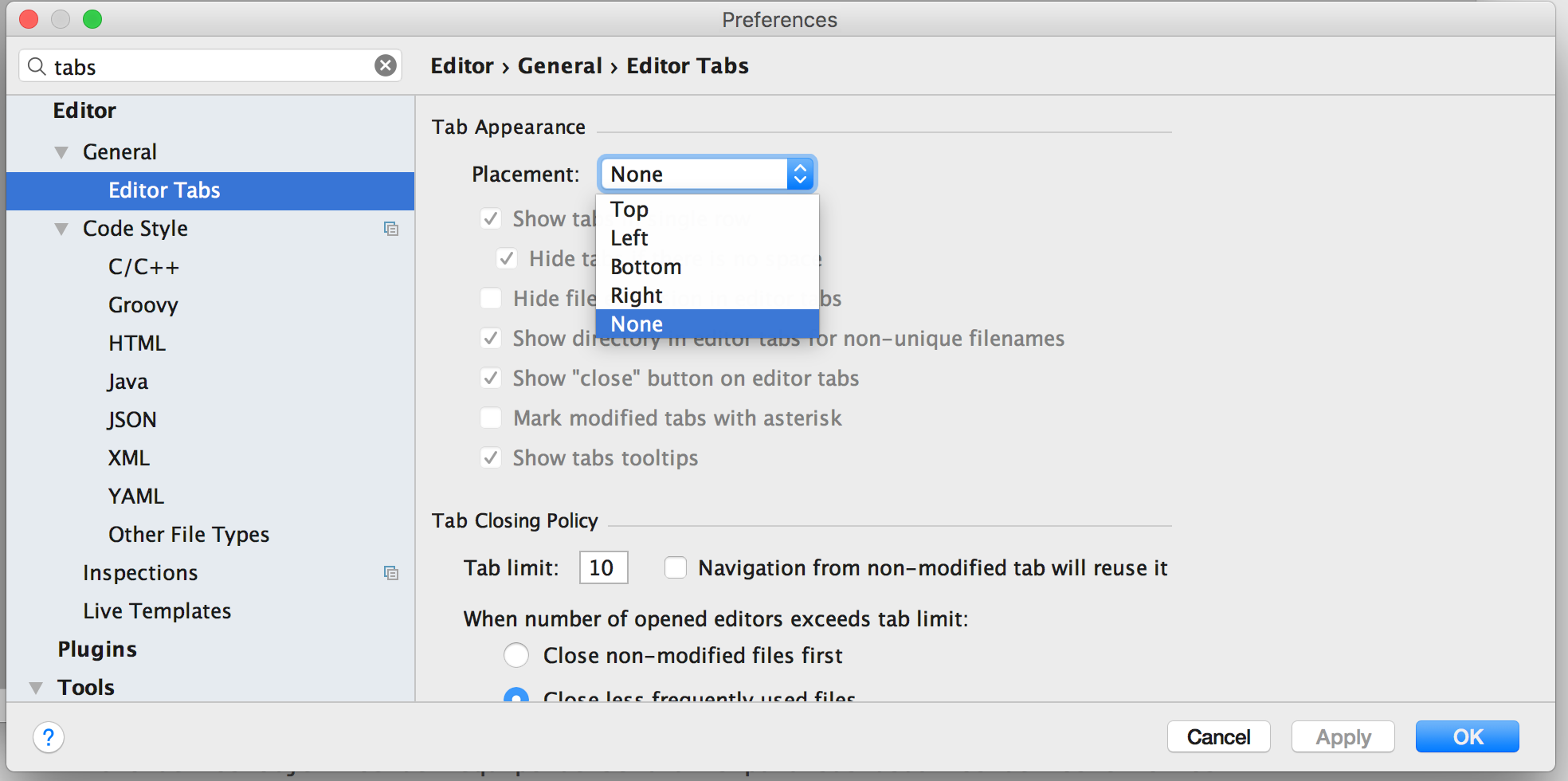
IntelliJ IDEA offers many ways to move effectively through the code without need tabs.
Navigation
One of the goals which the JetBrains team encourages to the users is that we have to use the mouse as less as possible. There are tons of actions and commands which allow working in a very effective way without leaving the hands from the keyboard gaining speed and accuracy.
Find classes, files, and actions
IntelliJ IDEA and, as the result, Android Studio offers solutions finding files, classes, actions.
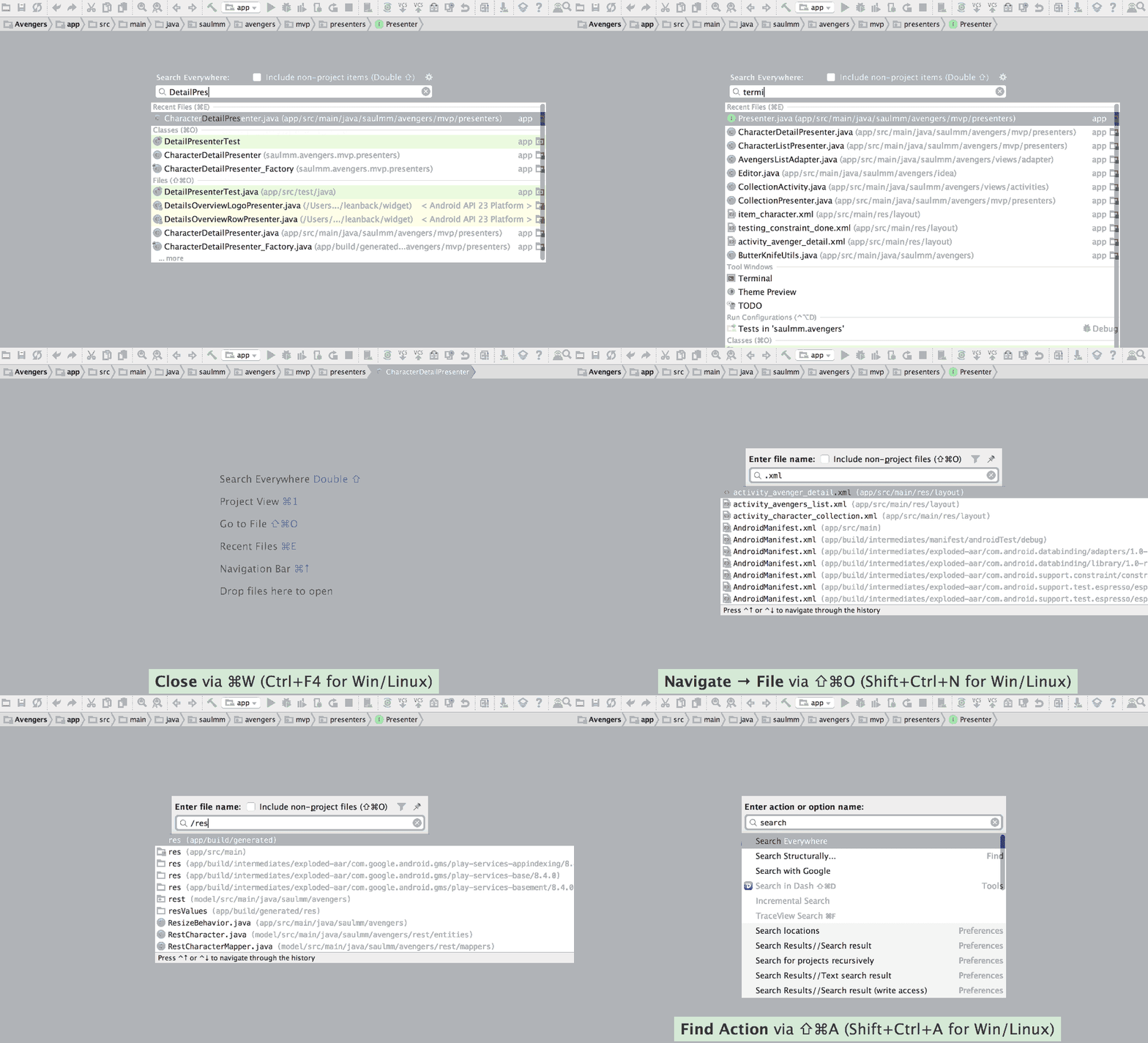
Search Everywhere - ⇧ + ⇧
It shows a dialog for search all types of elements: classes, files, actions, etc. It's recommended to avoid this action and use the specific ones since search everywhere could be slower and expensive in term of your machine resources.
Search types - ⌘ + O
It allows finding enumerations, classes, interfaces, etc fastly.
Search files - ⌘ + ⇧ + O
It allows finding every type of files, useful for XML files like layouts, resources, etc.
Search actions - ⇧ + ⌘ + o + A
It's possible to search and run actions from this feature, actions that live under menus, preferences, tool windows, etc, also suggests the shortcut of some actions, so, if you forget it you can fastly remind it searching for the action.
Bonus:
It's not necessary to write the full name of whatever we are looking for. If we are searching for a class called
CharacterDetailPresenter, we'll find it just typingCharacterPresenter.We can go to a specific line looking for classes (⌘ + O) writing a colon and the number of the line after the searched class name, for example:
CharacterDetailPresenter:50.If we type
/on the begiing of the text of the file that we are looking for, we'll find folders. For example, with/land, the dialog will suggest the folders related to landscape configurations.We can filter the folder which contains the searched file, for example,
values-es/strings.xmlorvalues/strings.
Project window - ⌘ + 1
For browsing through the project files, a nice solution is to use the project window which can be shown or hidden with the shortcut ⌘ + 1.

Bonus:
With ⌘ + ⇧ + ⟵ / ⟶, we can modify the size of the focused panel without using the mouse.
We can perform searches writing the name of the file or folder that we are looking for right in the browser, it will highlight the matches and will restrict the positions selected with the arrows for these matches.
Jump to navigation bar - ⌘ + ↑
The navigation bar is an interesting element to interact with. Using it, we can navigate through the project files as we usually do with the project window. The shortcut ⌘ + ↑ displays the bar and puts the focus into it even if it's disabled.

Bonus:
- We can perform some file operations inside the navigation bar context, like create new files ⌘ + N or delete them ⌫.
Show and hide windows
There are different ways to manipulate windows: show and hide a single one, jump to the last active window giving it focus, restore the focus back to the editor when we are using a panel, etc.
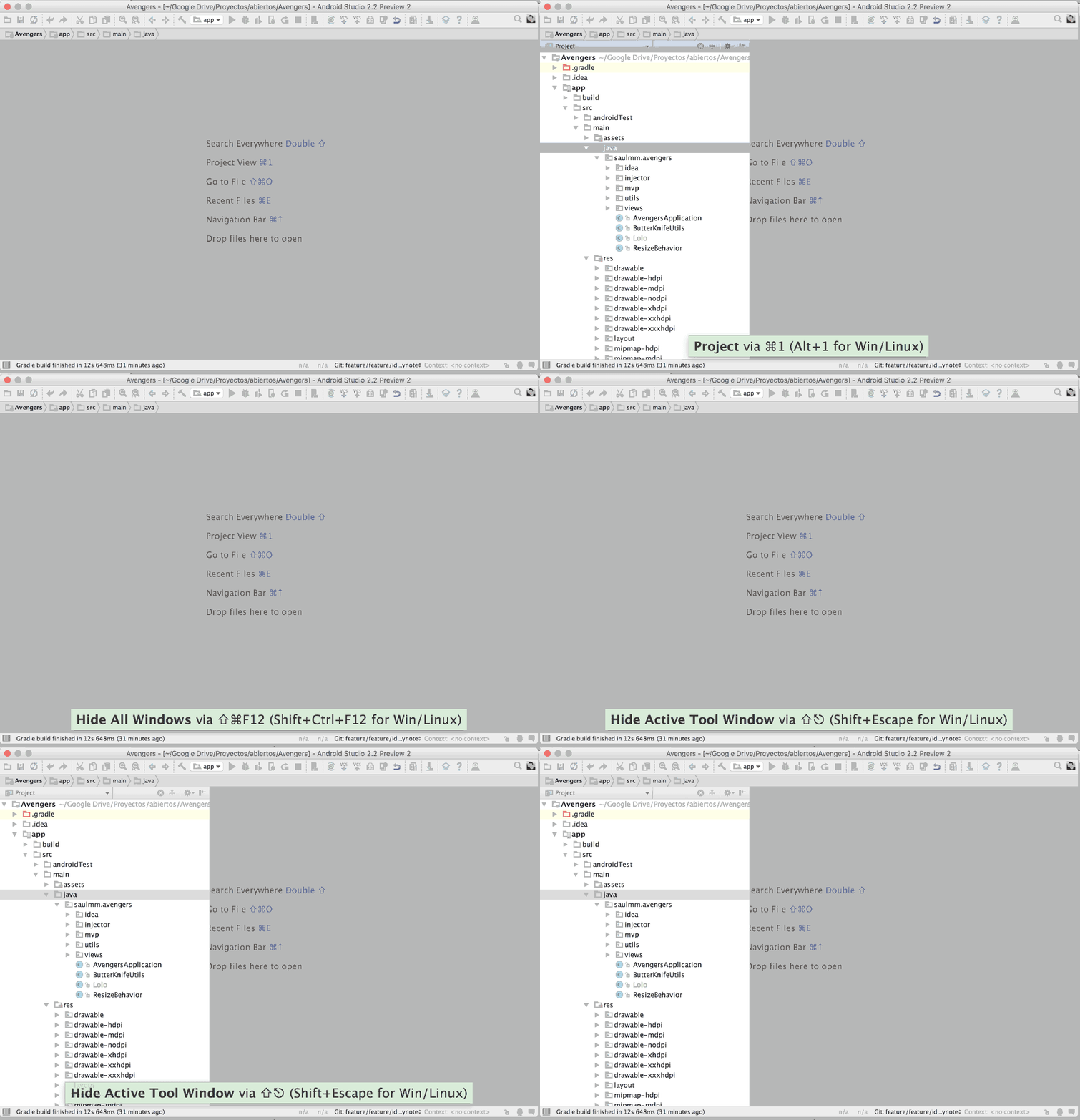
Hide / Restore all windows - ⇧ + ⌘ + F12
As its name indicates, it allows to hide and restore all visible windows.
Jump to Last Tool Window - F12
Restores the visibility of the last window used, also puts the focus into that tool.
Back to the editor
When we have the focus in a window, we can back to the editor without using the mouse with the key ⎋.
Recently files
These three actions can help us to save time when we are working with a group of files:
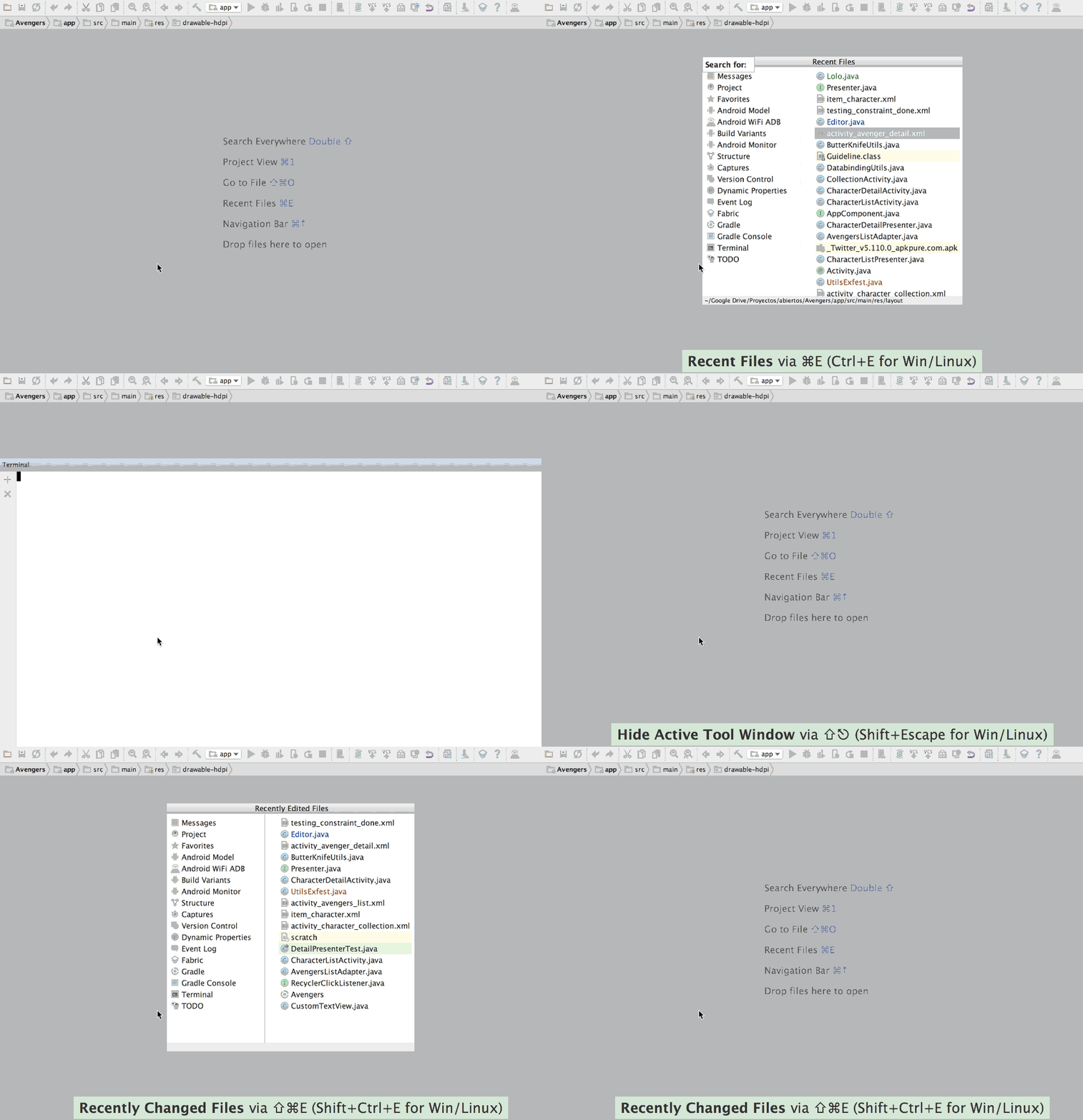
Recently Files - ⌘ + E
It shows files that have been opened recently.
Recently Changed Files - ⌘ + ⇧ + E
It shows files that have been opened and changed recently.
Structure of a file
A quick method to navigate through the different attributes and methods in a class is using the action file scructure, can be used with shortcut ⌘ + F12, or finding the action with ⌘ + A and typing file structure.
This feature, as many other, allows searching on it, allowing find quickly what we are looking for and place the caret accordingly.
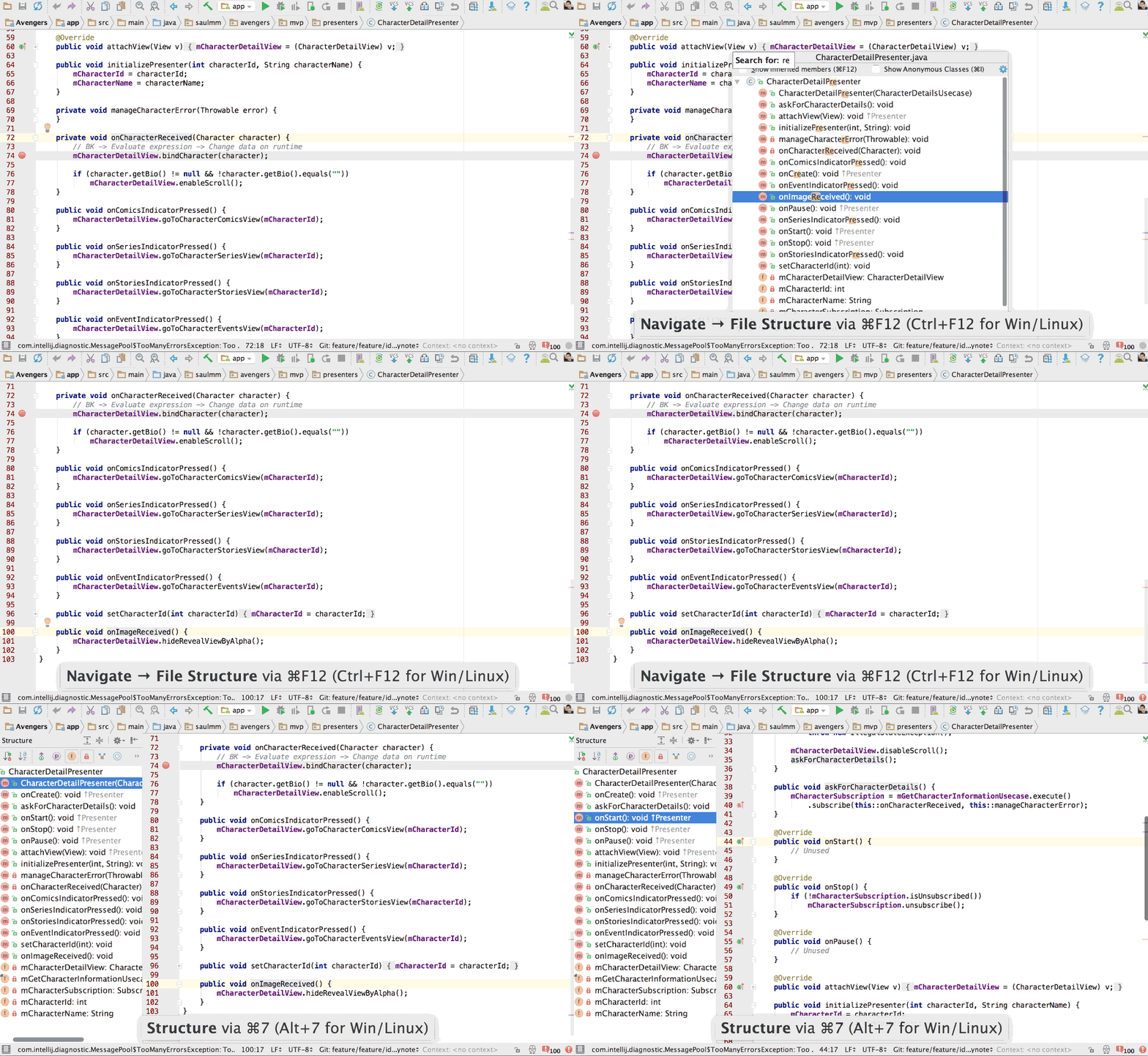
Similarly, the window structure (⌘ + 7), shows the same information but in a permanent way.
Show implementations and Super Method
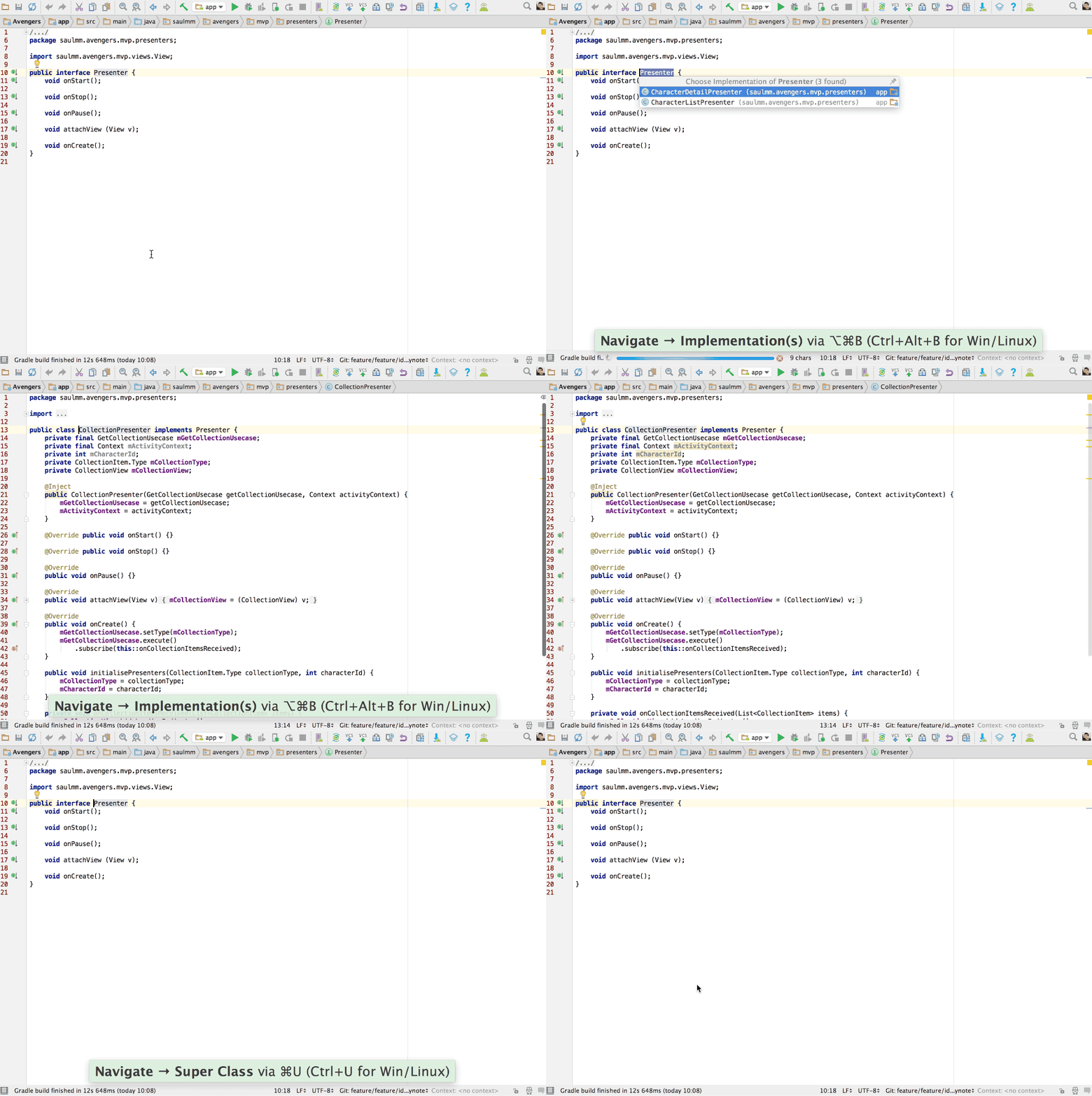
It's useful, sometimes, to show the current implementations of a superclass, interface or a method. Using ⌘ + B in the name of the class or method selected, allows, in a glance, check the current implementations navigate to them pressing the ENTER key.
Similarly, with the shortcut ⌘ + U in an implementation, we can navigate to the method or class which is being implemented.
Next Highlighted Error - F2
When Android Studio highlights some compilation errors, usually we use the mouse to scroll until their location and fix them.
With IntelliJ IDEA, we can place the care right on the left of the erros using the feature Next Highlighted Error (F2), avoiding leave your hands from your amazing keyboard.
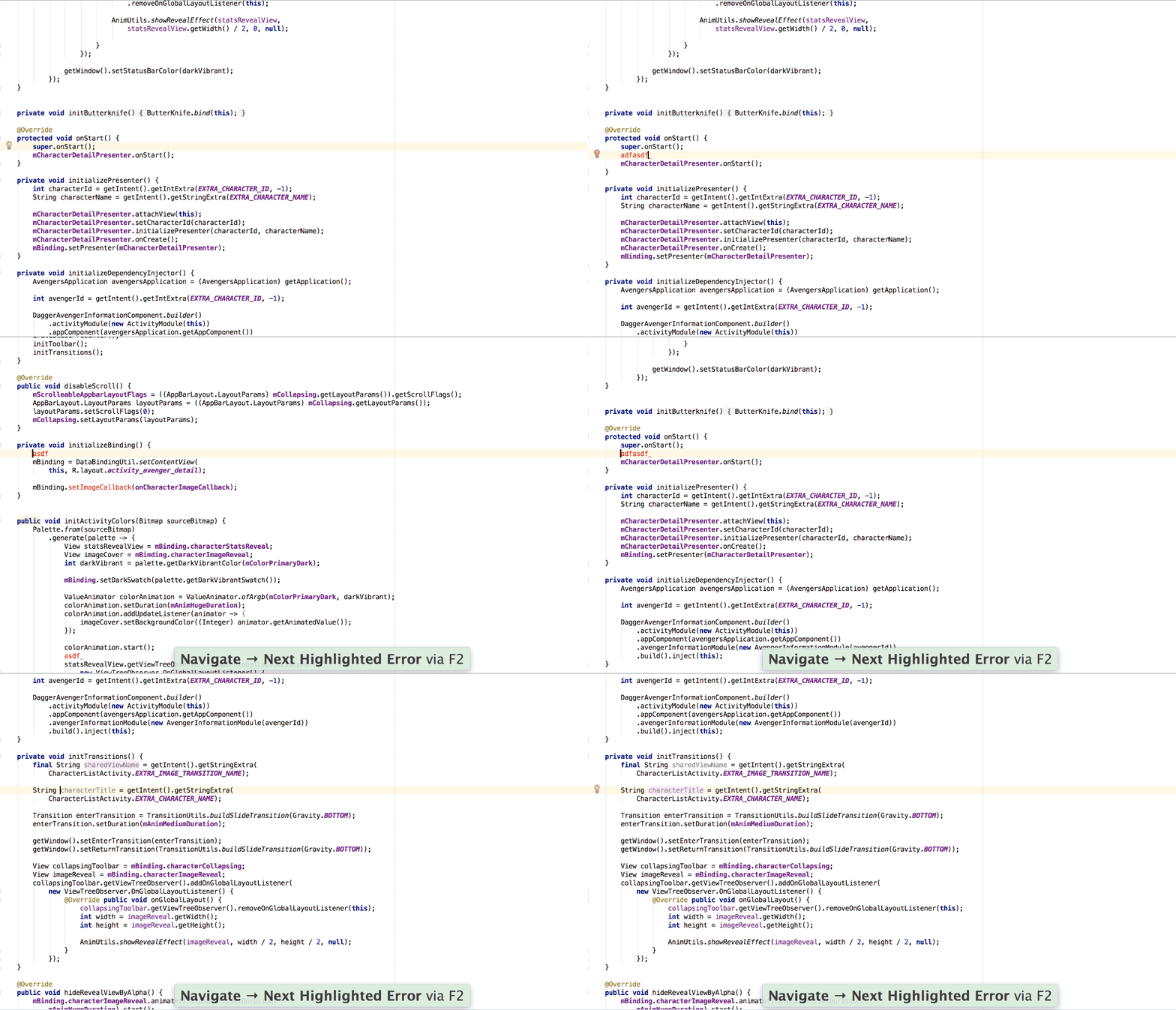
First, F2 will iterate the caret over all the errors. Once they are solved, the cursor will be placed left of the warnings according to the current inspection profile.
Las Edit Location - ⌘ + ⇧ + ⌫ - Last Edit Location
When we are changing the code in classes with a huge number of lines, we tend to edit different sections of the class. Put some declarations, edit the body of a method, etc.
It could be useful after add some declarations place the caret back to the previous edition without using your mouse.
The action Last Edit Location (⌘ + ⇧ + ⌫), does exactly that. Moves the caret to the previous edition location without changing the code.
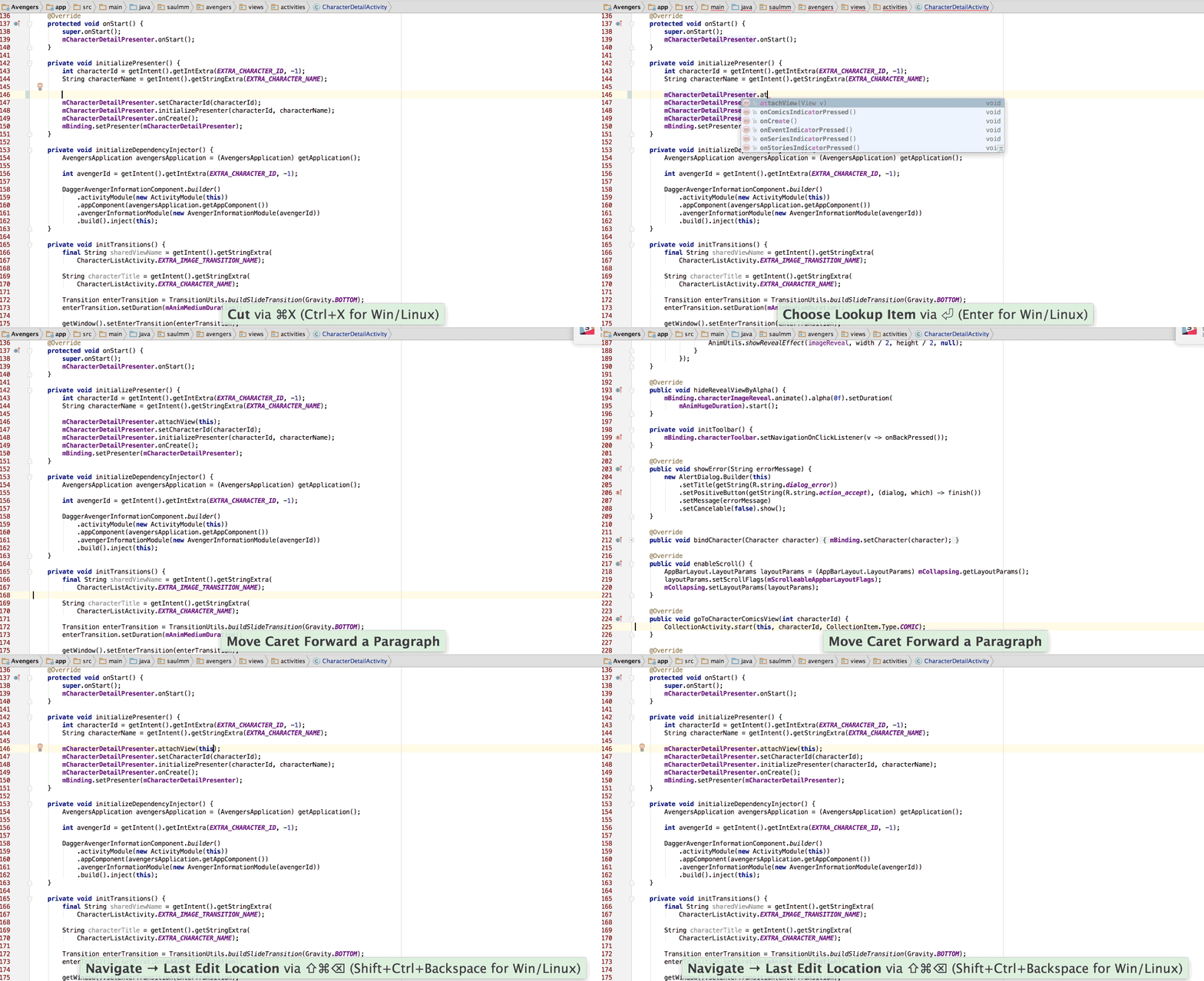
Even if the edition has been made in a different file, the editor will place the caret right in the file where the edition was made.
Edition
Replace instead append
When we are writing code, usually we use the completion dialog in order to add suggestions.
When we decide to add a suggestion pressing the ENTER key, the new sentence is added left of the old one, causing an error.
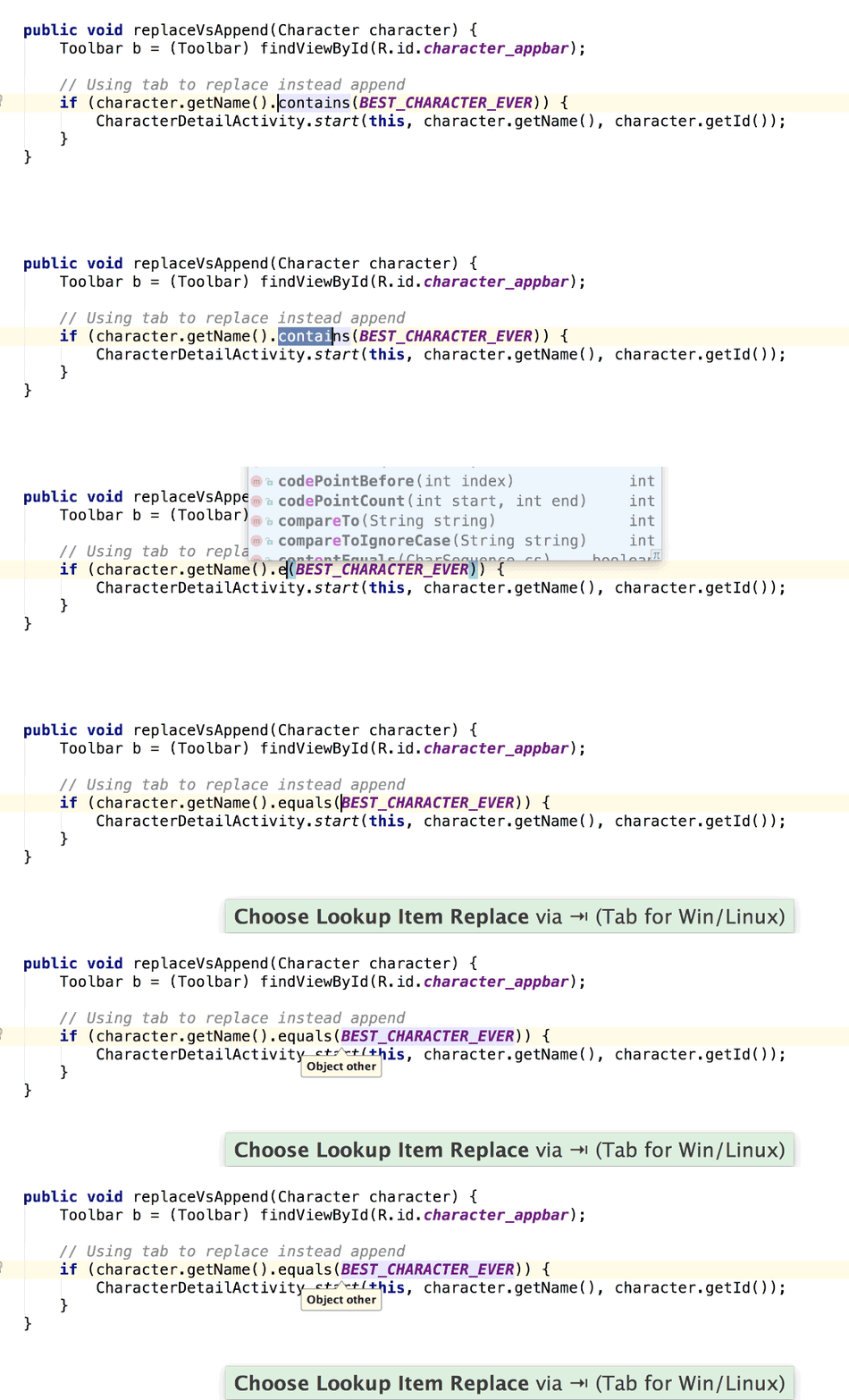
If instead ENTER we press TAB, and if desired method call has the same number of parameters, the new code will be automatically set with the old parameters.
Complete Current Statement - ⌘ + ⇧ + ENTER - Complete Current Statement
Using a powerful IDE like Android Studio, there is no need to worry about some syntactic elements like braces or semicolons.
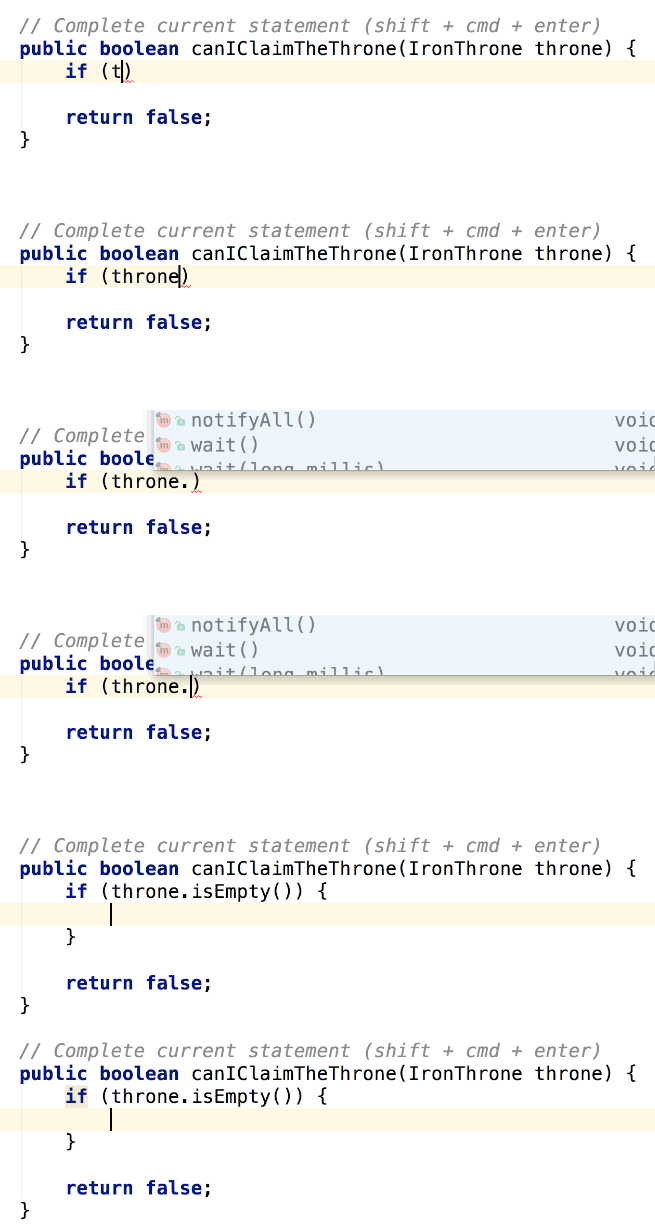
There is an action called Complete Current Statement which automatically add the necessary elements in some contexts.
Add Selection To The Next Ocurrence - ⌘ + G
In some situations, it could be very effective use multiple carets in order to change multiple sentences at the same time.
We can achieve it, with the feature Add Selection To The Next Ocurrence (⌘ + G), selecting the pattern where we want to add carets.
Android Studio and IntelliJ IDEA give us even some cool editing tools in this feature, like cut and paste fragments of code, selection tools, etc.
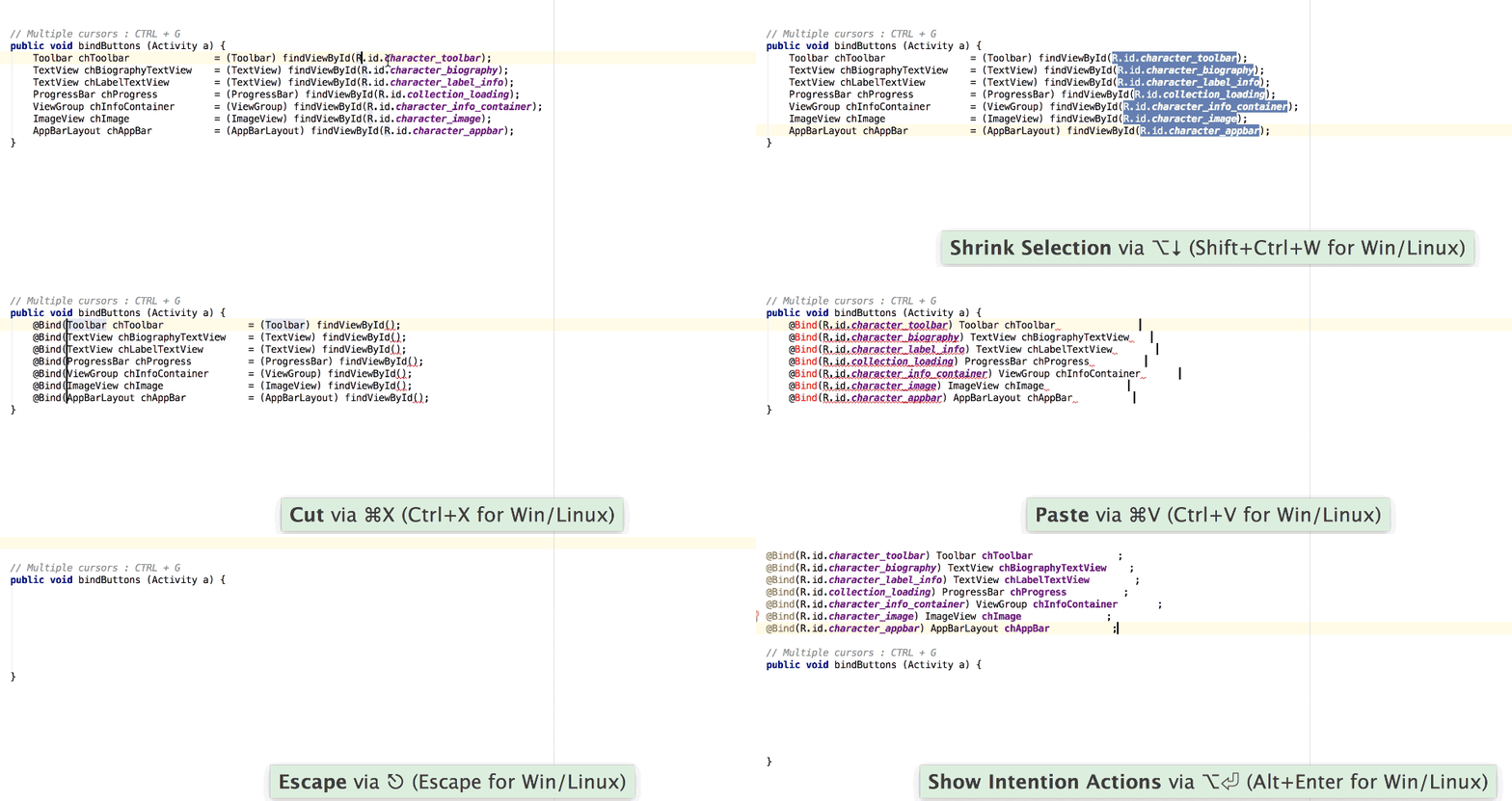
A practical use could be, for instance, changes the binding of our views in an activity or fragment to replace them by ButterKnife aotations.
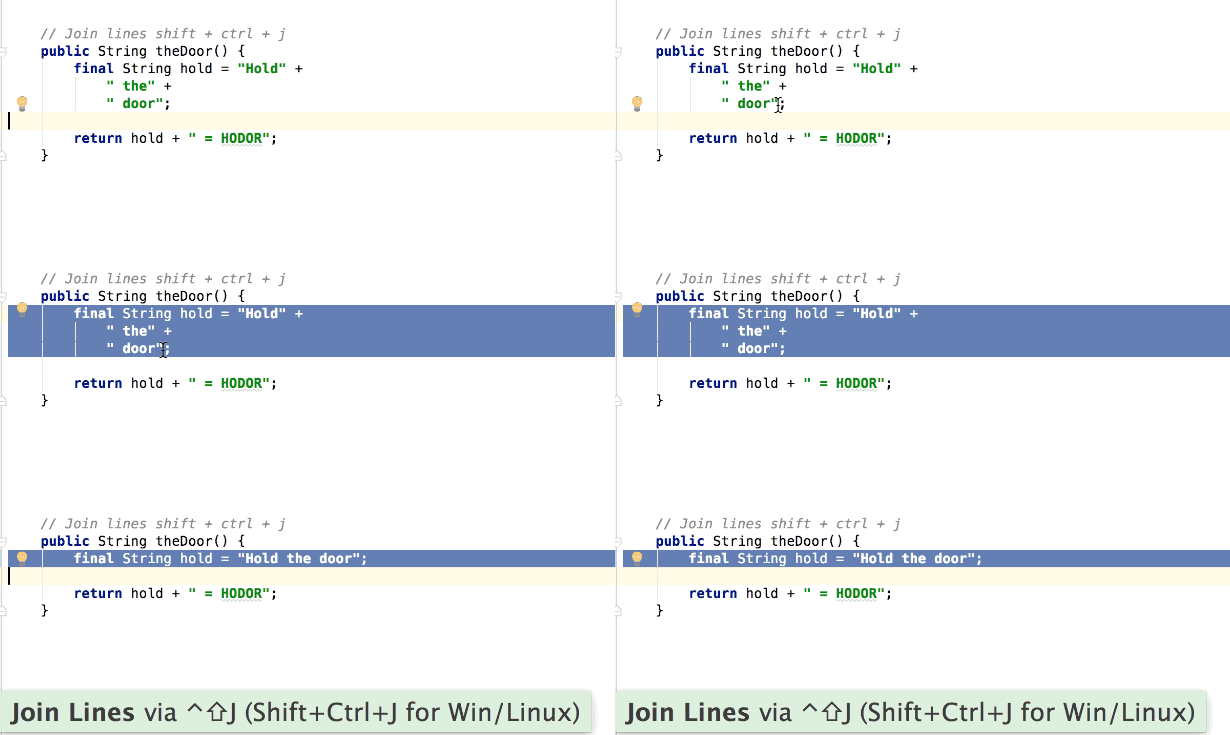
Join Lines - ⌘ + ⇧ + J
When there is a string concatenated multiple times in different lines, it could be useful to join those lines into a single one, with the action join lines we'll achieve a single sentence without having to worry about delete the concat operators.
برچسب: استفاده بهتر از ماه رمضان,استفاده بهتر از زمان,استفاده بهتر از ایفون,استفاده بهتر از موبایل,استفاده بهتر از کولر آبی,استفاده بهتر از آب,استفاده بهتر از ساعات عمر,استفاده بهتر از وقت,استفاده بهتر از مغز,استفاده بهتر از galaxy s4,
نویسنده: فاطمه اسدیان